Training Path Configuration
LearnNow Portal > Training Courses
Description
As a content creator, I am able to create training paths to be able to assign a collection of related learning to a user.
Applicable User Roles
List of roles that have access or can use this feature.
Content Creator
How To
A training path is a collection of courses that makes it easy to assign a pathway for a user to achieve a particular goal. This can be used for Onboarding content, pathways to achieve a certification or even how to use features on a website, including SkillsNow!
Create and publish Training Paths
From the Training Paths view, clicking on the “Create Training Path” button will bring up the Create Training Path window.
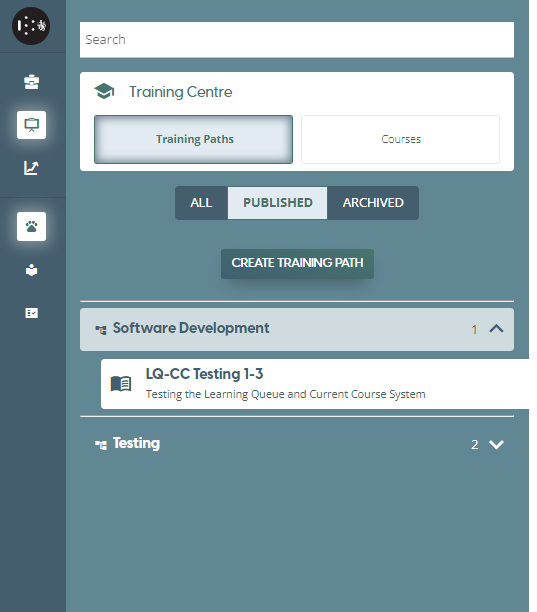
From this window you can either choose to start a brand new training path with the “Create Training Path” button or continue editing a training path in the draft state by selecting the “Continue” button from the list of paths provided.
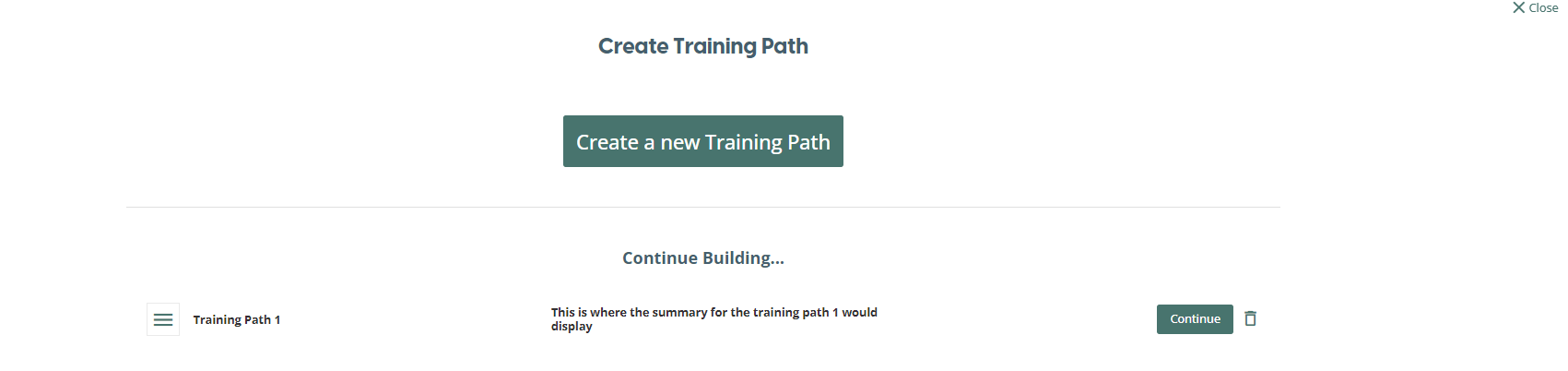
Edit Training Path
The first view when creating a new training path is the Edit Training Path view. Here you fill out a form to provide details about the path you are creating. The fields are:
-
Category: Select the category the Training Path is associated with from a list of categories provided. A required field. If you wish to change the items in the list, please email support@skillsnow.com
-
Language: The language the path is produced in. A required field.
-
Name: The title you want to give to the training path. A required field
-
Description: An explanation of the training path and the material it covers.
-
Skillsets: Select the skills that the path covers from a fixed list of skillsets. If you wish to change the items in the list, please email support@skillsnow.com
After you have filled in all the required fields, click on the “Next” button to move on to the next step.
Add Courses
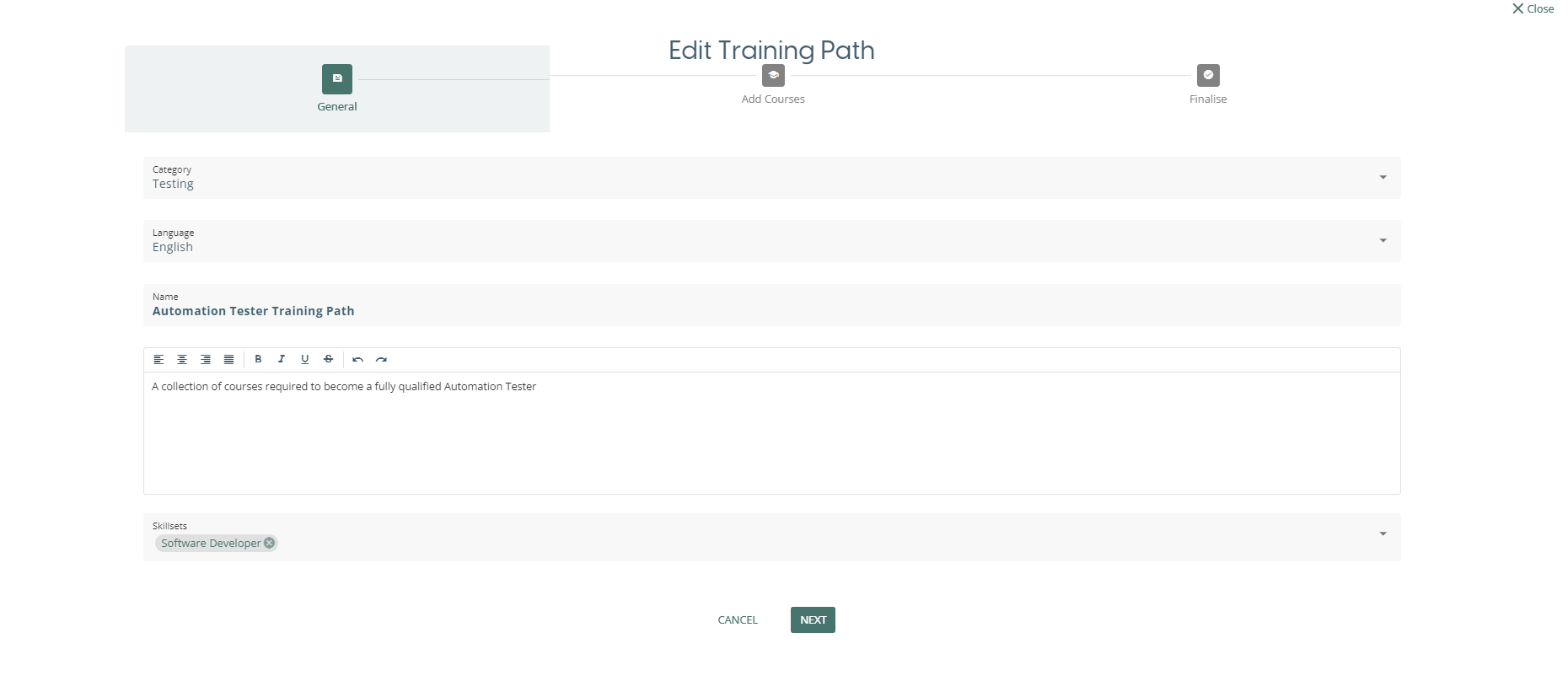
The next step in creating a training path is to assign courses to the path itself. The next view provides a list of the published courses. In order to add a course to a path, click on the course icon to select it and it will have a green tick to signify it has been selected. Clicking on the course again will untick it and remove it from the path. There is a Filter Results element that when clicked, expands to allow you to filter the courses in the view via different attributes.
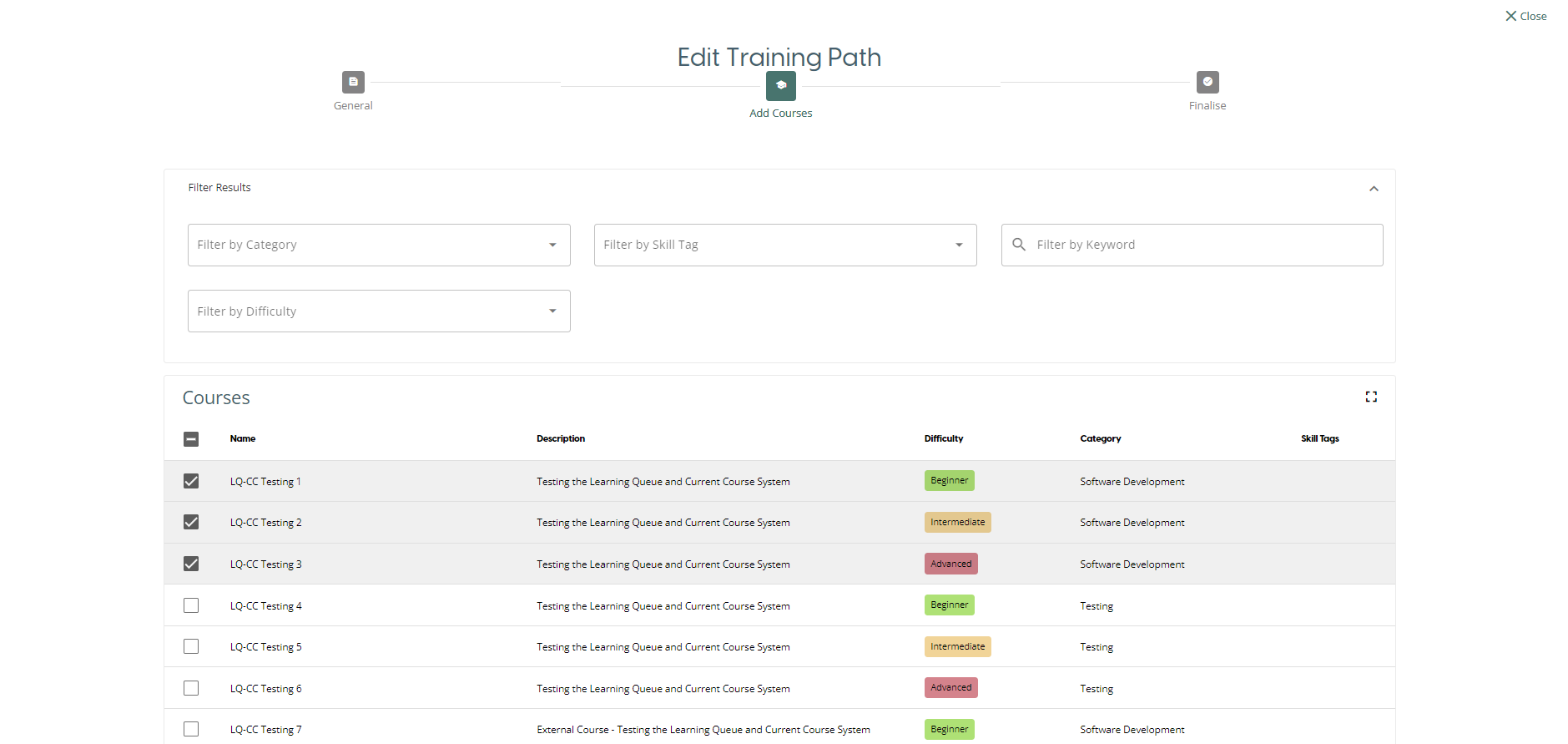
Once you have finished selecting courses, scroll to the bottom of the page and press the “Add to training path” button.

Finalise
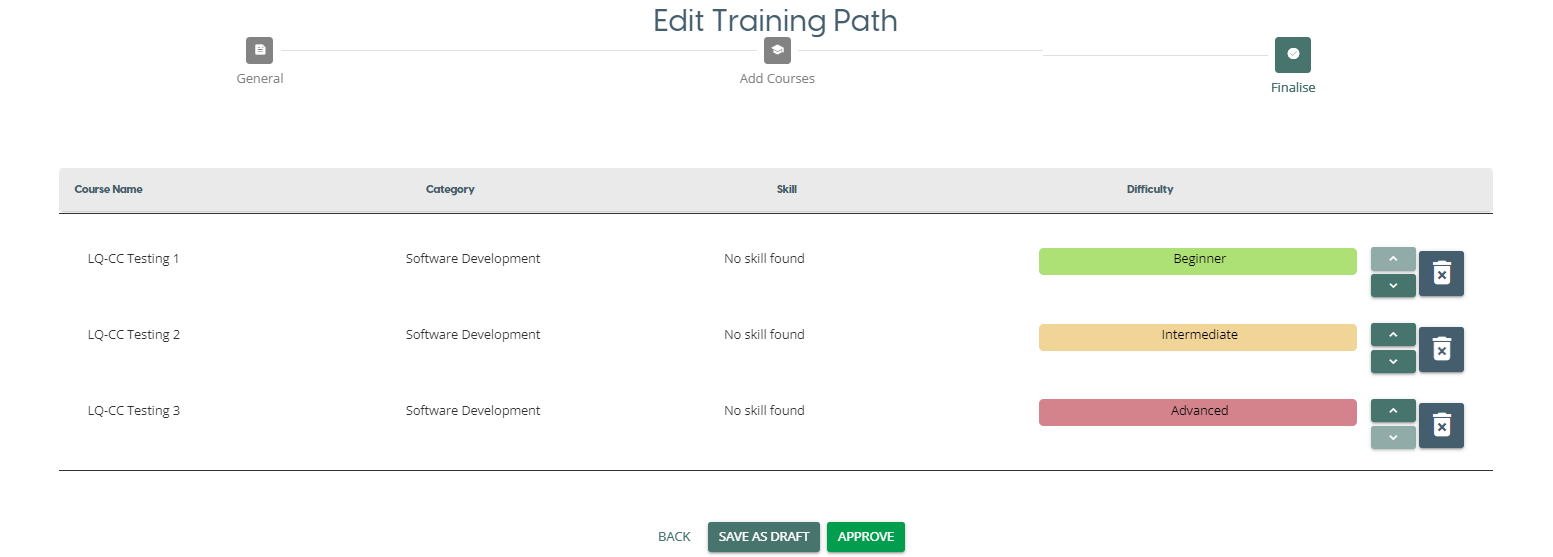
The final step in creating a training path is to finalise the courses in the path. The Finalise view provides a list of the courses that have been added to the path along with details of each course. The list is in the order that the courses were selected, so you can use the blue arrows to move a courses position in the list. The bin icon can be used to remove a course from the list. If you wish to keep the path in the Draft state, click the “Save as Draft” button. If you wish to publish the Training Path, pressing the “Approve” button will publish so it can be assigned to companies, teams or individuals.
Training Path Versioning
If the content of your training path changes after a training path has been published, you are able to create a new version of the training path. This feature allows you to modify the courses that are associated with the training path, and at the same time update the learning queues of the users who have already been assigned to the training path.
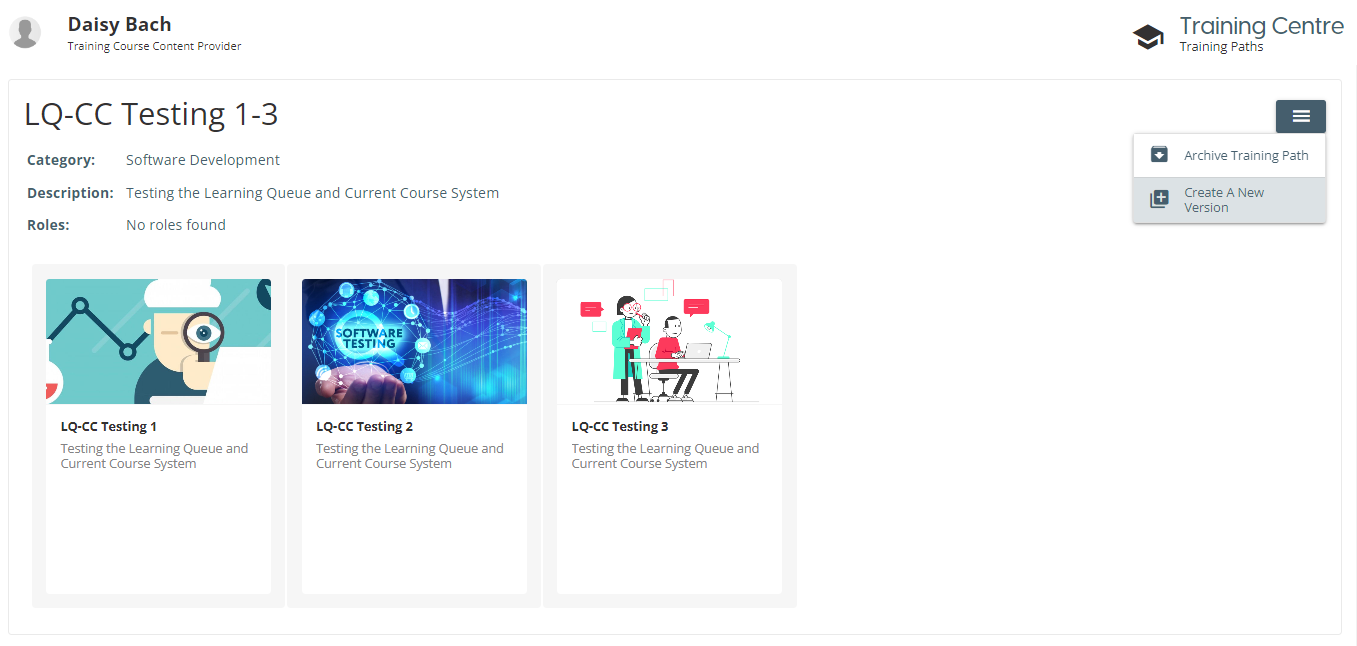
To create a new version of the training path, first select a published training path from the list. Click on the burger menu in the top right of the page and then click on the Create a New Version option to begin the process.
This will then open up the Training Path editor dialog on the General setting page, allowing you to start editing details of the training path. On the next page, you will be able to edit the courses associated with the training path, with the previously selected courses already checked. You can add or remove courses on this step.
You will see a new option on the finalise page which gives you the option of what to do with users who have already been assigned the training path.
If the toggle is enabled:
- The new version of the training path will be assigned to the users Learning Queue.
- Any courses no longer associated with the Training Path and in the 'Pending' state will be removed from the users Learning Queue.
- Any courses no longer associated with the Training Path but which the user has accessed at least one, will reamin in the users Learning Queue but will have the Training Path association removed.
If the toggle is disabled,
- The user's learning queues will be unaffected. They will not be assigned the new version of the training path, and no courses will be added, removed or updated from thier learning queue.
If you are unsure what each of the options does, or what the toggle being enabled or disabled looks like, click on the 'What does this mean?' link to display a guide.
